Actualizar desglose de partidas en un contrato principal
Objetivo
Describir las diferentes formas de actualizar las partidas del desglose de partidas de un contrato.
Contexto
Después de crear un contrato, puede elegir entre tres (3) métodos para actualizar las partidas del desglose de partidas de su contrato:
- Añadir partidas al desglose de partidas
Si el desglose de partidas de su contrato solo tiene unas pocas partidas o si quiere añadir manualmente nuevas partidas al desglose de partidas, utilice el botón «Añadir línea» para introducir manualmente cada partida del desglose de partidas. - Crear el SOV a partir del presupuesto del proyecto
Si desea estructurar el SOV de su contrato para que coincida con sus partidas presupuestarias, Procore le ofrece una opción para importar sus partidas del SOV directamente desde la herramienta Presupuesto de Procore. Este método crea automáticamente el SOV del contrato para usted utilizando las partidas presupuestarias de su proyecto como fuente de datos. - Importar el desglose de partidas a partir de un archivo CSV
Si prefiere confeccionar el desglose de partidas de su contrato utilizando un programa de hojas de cálculo, como Microsoft Excel, puede descargar una plantilla en blanco que coincida con la estructura de tablas del contrato, añadir las partidas del desglose de partidas a la hoja de cálculo, guardar el archivo en el formato de archivo de valores separados por comas (CSV) y, a continuación, importar sus partidas. También puede utilizar el proceso de importación para sustituir todas las partidas existentes en el desglose de partidas del contrato o puede conservar las partidas existentes y añadir otras.
Temas a considerar
Importante
Nota del autor: El contenido de "Temas a considerar" de (1) Actualizar el desglose de partidas en un contrato principal a continuación también debe copiarse y pegarse en la sección Temas a considerar de (2) Crear un desglose de partidas de contrato principal a partir del presupuesto del proyecto. No se puede añadir un bloque de reutilización de contenido a (2) debido al problema de recursividad de Mindtouch.- Permisos de usuario necesarios:
- Permisos de nivel "Administrador" en la herramienta Contratos principales del proyecto.
Nota
Para limitar a los usuarios de Procore la visualización de los datos de su contrato, configure la función de permisos pormenorizados al aplicar las plantillas de permisos. Consulte Gestionar plantillas de permisos de proyecto y Otorgar permisos pormenorizados en una plantilla de permisos.
- Permisos de nivel "Administrador" en la herramienta Contratos principales del proyecto.
- Información adicional:
- Para completar los pasos a continuación, el contrato deberá tener el estado "Borrador". Sin embargo, si la configuración "Habilitar programación siempre editable de valores" está activada en esta herramienta, los usuarios con el permiso de usuario requerido para editar contratos principales pueden editar la programación de valores cuando un contrato está en cualquier estado. Para obtener más información, ¿qué es la configuración "Habilitar programación de valores siempre editable"?
Nota
Si tiene partidas entrantes de la herramienta Presupuesto del proyecto (consulte /">Cree el desglose de partidas a partir del presupuesto del proyecto a continuación) y los importes de esas partida son inferiores a los importes facturados en esas partida en una factura de CP/cliente , factura de financiación o factura de promotor, un mensaje de error le notifica que las partidas no se pueden importar del presupuesto del proyecto.
- Para completar los pasos a continuación, el contrato deberá tener el estado "Borrador". Sin embargo, si la configuración "Habilitar programación siempre editable de valores" está activada en esta herramienta, los usuarios con el permiso de usuario requerido para editar contratos principales pueden editar la programación de valores cuando un contrato está en cualquier estado. Para obtener más información, ¿qué es la configuración "Habilitar programación de valores siempre editable"?
- Limitaciones:
- Si ha creado varios contratos principales, tenga en cuenta que puede importar partidas presupuestarias en un desglose de partidas de contrato principal. Sin embargo, NO puede elegir qué partidas desea importar. Para obtener más información, consulte ¿Existen limitaciones en el sistema para la creación de múltiples contratos principales?
Requisitos
- Cree un contrato con el estado «Borrador». Consulte Crear contratos principales.
- Establezca el método de contabilidad en el contrato. Consulte ¿Cómo configurar el método de contabilidad para un contrato o financiación? y Editar la configuración avanzada de un contrato principal.
- Si va a crear el desglose de partidas de un contrato a partir del presupuesto del proyecto como se describe a continuación, asegúrese de que el desglose de partidas del contrato esté en blanco. Solo puede seguir los pasos que se indican a continuación cuando el desglose de partidas del contrato tenga cero (0) partidas. También debe:
- Crear el presupuesto del proyecto. Consulte Configurar un presupuesto.
- Bloquear el presupuesto del proyecto. Consulte Bloquear un presupuesto.
Pasos
Hay varias formas de añadir y actualizar partidas en el desglose de partidas de un contrato:
- Establecer el método de contabilidad en un nuevo contrato principal
- Añadir partidas al desglose de partidas
- Crear el desglose de partidas a partir del presupuesto del proyecto
- Importar el desglose de partidas a partir de un archivo CSV
Establecer el método de contabilidad en un nuevo contrato principal
De forma predeterminada, los nuevos contratos principales están configurados para utilizar el método de contabilidad"Basado en importe". Los usuarios pueden cambiar esto a "Basado en unidades/cantidades" haciendo clic en el botón Cambiar a unidad/cantidad . En Procore, el método de contabilidad de un contrato o financiación determina cómo se gestionan las partidas en las facturas. La contabilidad basada en importes utiliza sumas globales para las partidas, mientras que la contabilidad basada en unidades/cantidades utiliza cantidades y precios unitarios para calcular los totales. Una vez que se establece el método de contabilidad de un contrato y se crean las partidas, no se puede cambiar

Añadir partidas al desglose de partidas
Crear el desglose de partidas a partir del presupuesto del proyecto
Nota
Si va a crear el desglose de partidas del contrato a partir del presupuesto del proyecto como se describe a continuación, asegúrese de que el desglose de partidas del contrato esté en blanco. Solo puede seguir los pasos que se indican a continuación cuando el desglose de partidas tenga cero (0) partidas. También debe:
- Crear el presupuesto del proyecto. Consulte Configurar un presupuesto.
- Bloquear el presupuesto del proyecto. Consulte Bloquear un presupuesto.
- Navigate to the project's Prime Contracts tool.
- Locate the contract to update. Then click its Number link.
- Click the Schedule of Values tab.
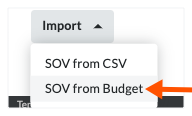
- Below the 'Schedule of Values' table, click Import. Then choose SOV from Budget from the drop-down menu.
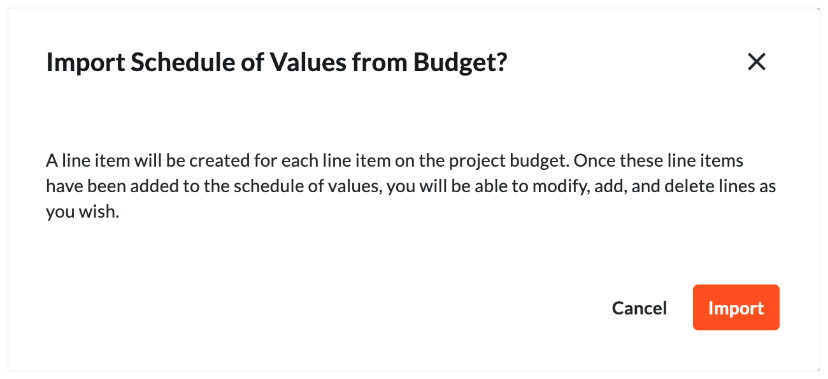
- In the 'Import Schedule of Values from Budget?' window, click Import.
- If the SOV is blank, the following message appears.
- If the SOV has existing line items, all existing line items will be replaced with the line items in the budget.
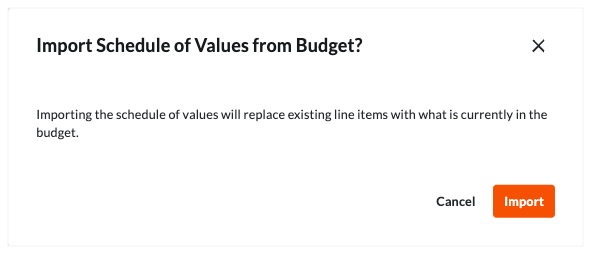
Procore replaces any existing line items on the Schedule of Values with the line items current in the project's budget. This can take several minutes. Once the import is complete, a GREEN banner appears to indicate the action was successful and the line items appear in the 'Schedule of Values' table.
- If the SOV is blank, the following message appears.
Importar el desglose de partidas a partir de un archivo CSV
- Download a CSV Template
- Add Line Items to a CSV Template
- Import the Completed CSV Template to Procore
Download a CSV Template
- Navigate to the Prime Contracts tool.
- In the table, click a Number link to open the contract.
- Under the General tab, click Schedule of Values.
- In the Schedule of Values card, click Edit.
This places the SOV into edit mode - Below the table, click Import and choose SOV from CSV.
This opens the Import Schedule of Values from CSV window.

- Expand Customize CSV Delimiter.
- Choose a delimiter for the template file: Comma or Semicolon.
The system's default option is Comma. - Click Download CSV Template and choose: Blank Template or Template with Existing Line Items.
The downloads the selected template to your web browser's configured location.
Add Line Items to a CSV Template
- Open the downloaded template in a spreadsheet editor.
- Enter the line item data using the appropriate accounting method for the prime contract. See How do I set the accounting method for a contract or funding?
- How to enter data for amount-based accounting: Show/Hide
- To import a prime contract using the amount-based accounting method, enter data as follows:

- Sub Job. Enter a sub-job code for the line item. This only appears when sub-jobs are enabled. See Enable Sub Jobs for WBS and Which integrated ERP systems support the sub job concept?
- Cost Code. Enter a cost code for the line item. To learn more, see What are Procore's default cost codes?
- Cost Type. Enter a cost type for the line item. See What are Procore's default cost types?
Important Information about Cost Types
- If you leave this cell blank, Procore classifies it as Other.
- This list might be customized for your company. See Add Company Cost Types or ask your Company Admin for a list of valid cost types.
- Data entry is required if your integrated ERP system syncs data with Procore. See Which integrated ERP systems support the 'Cost Type' concept?
- Description. Enter a statement to describe the line item.
- Tax Code. Enter the tax code for the line item.
Important Information About Tax Codes
- This list might be customized for your company. See Configure Tax Code Settings or ask your Company Admin for a list of valid tax codes.
- Amount. Enter a numeric amount without commas or the dollar sign (e.g., 15000); enter '0.00' if there is no dollar amount, as blank cells are not accepted.
- To import a prime contract using the amount-based accounting method, enter data as follows:
- How to enter data for unit/quantity-based accounting: Show/Hide
- To import a prime contract using the amount-based accounting method, enter data as follows:

- Sub Job. Enter a sub-job code for the line item. This only appears when sub-jobs are enabled. See Enable Sub Jobs for WBS and Which integrated ERP systems support the sub job concept?
- Cost Code. Enter a cost code for the line item. To learn more, see What are Procore's default cost codes?
- Cost Type. Enter a cost type for the line item. See What are Procore's default cost types?
Important Information about Cost Types
- If you leave this cell blank, Procore classifies it as Other.
- This list might be customized for your company. See Add Company Cost Types.
- Data entry is required if your integrated ERP system syncs data with Procore. See Which integrated ERP systems support the 'Cost Type' concept?
- Description. Enter a statement to describe the line item.
- Quantity. Enter a numeric value representing the quantity of the unit.
- UOM. Enter a UOM abbreviation. See Which units of measure are included on Procore's master list?
- Unit Price. Enter the unit price for the line item.
- Subtotal. Enter the subtotal for the line item.
- Override. You have these options, choose one (1) option:
- To override the automatic subtotal calculation, enter a value here and leave the Quantity, Unit Description, and Unit Price fields blank.
OR - To use Procore's automatic calculation, enter values in the Quantity, Unit Description, and Unit Price fields, leaving the Override field blank.
Important information about automatic calculation
- If your integrated ERP system syncs data with Procore, data entry in the Quantity, Unit Description, and Unit Price fields is required. See Which integrated ERP systems support the 'Cost Type' concept?
- To override the automatic subtotal calculation, enter a value here and leave the Quantity, Unit Description, and Unit Price fields blank.
- Tax Code. Enter the tax code for the line item. See Configure Tax Code Settings.
- To import a prime contract using the amount-based accounting method, enter data as follows:
Import the Completed CSV Template to Procore
- Navigate to the Prime Contracts tool.
- In the table, click a Number link to open the contract.
- Under the General tab, click Schedule of Values.
- In the Schedule of Values card, click Edit.
This places the SOV into edit mode. - Below the table, click Import and choose SOV from CSV.
This opens the Import Schedule of Values from CSV window.

- Upload the file as follows:
- Click Upload File and select the completed template to upload.
OR - Drag-and-drop the completed template to the CSV File area.
- Click Upload File and select the completed template to upload.
- Depending on the state of your prime contract, choose the appropriate option:
- To add more line items to the prime contract, select Add Additional Line Items, then click Import.
- To replace all existing line items on the prime contract with the template, select Replace Existing Line Items, then click Import.
Procore imports the template and displays a success banner. If you see an error message, click Show Error to learn why the import failed.
Consulte también
 .
.