Importar elementos de segmento en su herramienta Administrador de nivel de proyecto (Procore Imports)
Objetivo
Importar elementos de segmento WBS personalizados en la herramienta Administrador de su proyecto con Procore Imports.
Contexto
A segment is a discrete category that an organization uses to break down its work into manageable components. A segment item is one of many distinct items in a segment. In Procore's Financial Management tools, segments are the building blocks that define the pattern of your company's budget code structure.
Examples
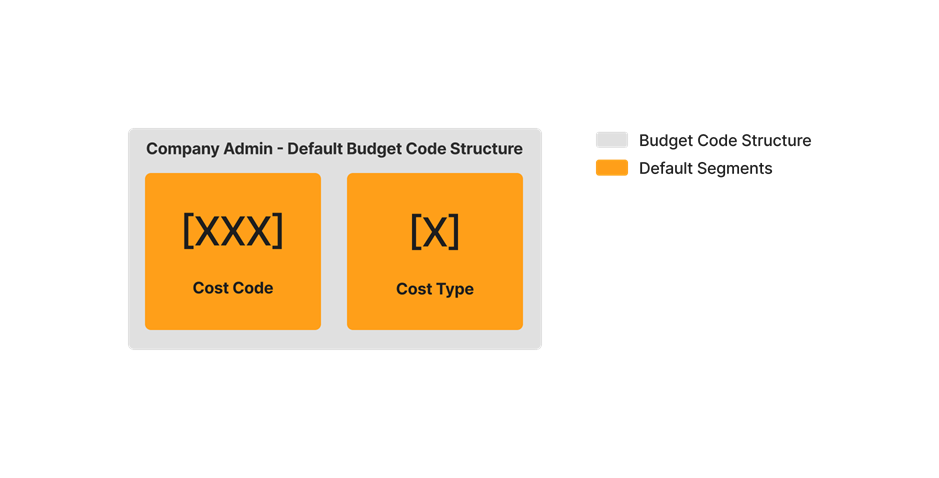
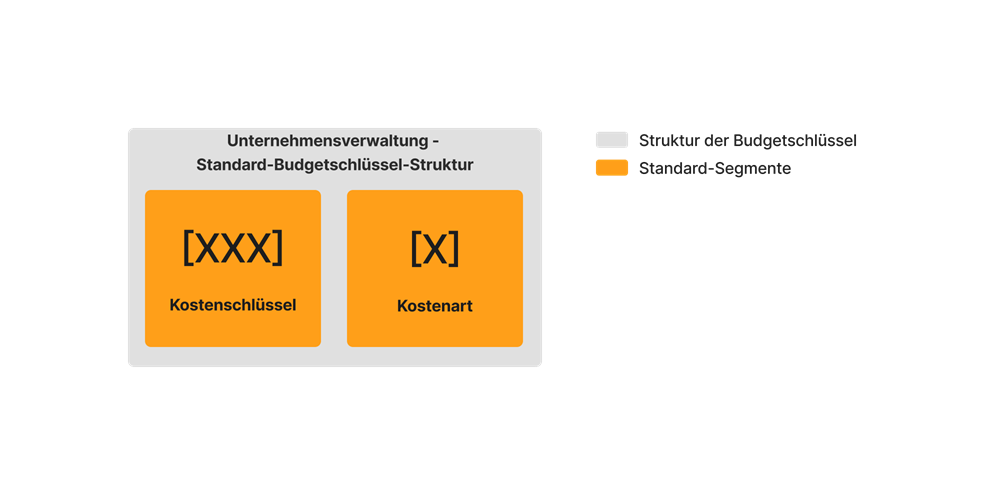
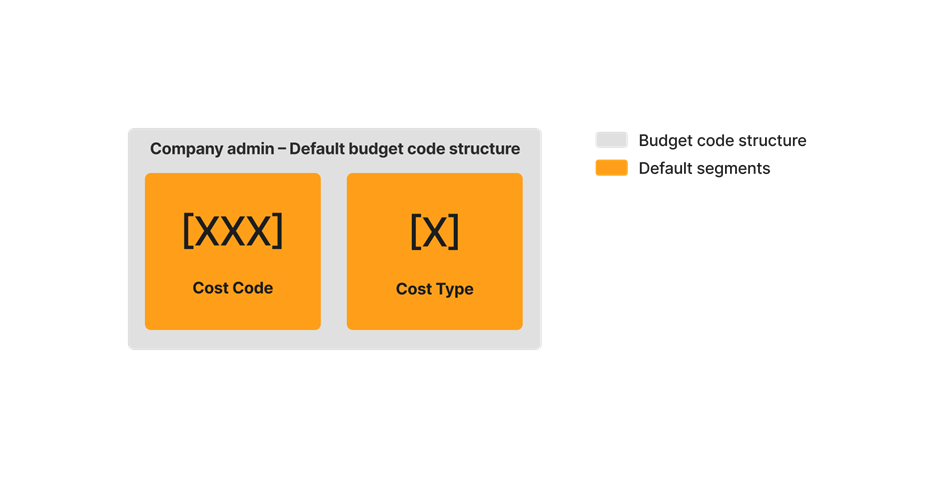
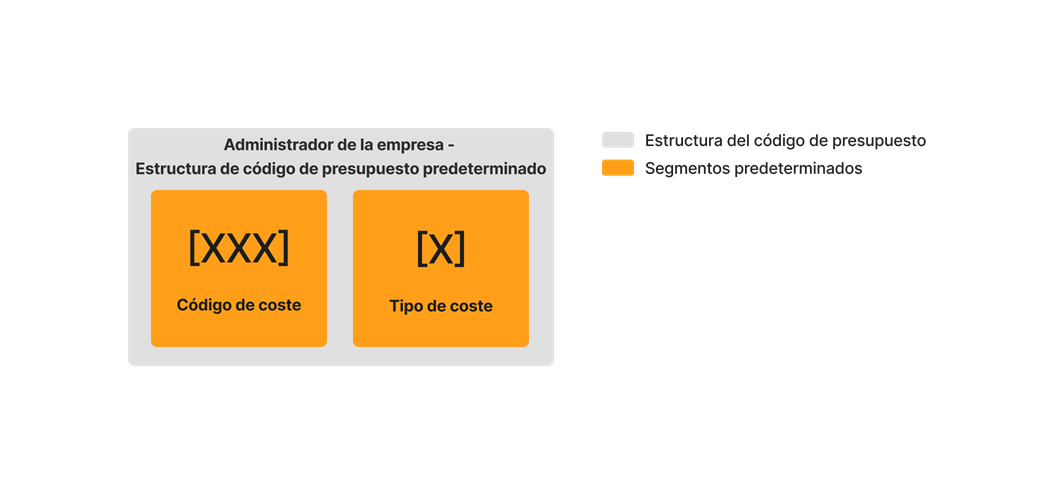
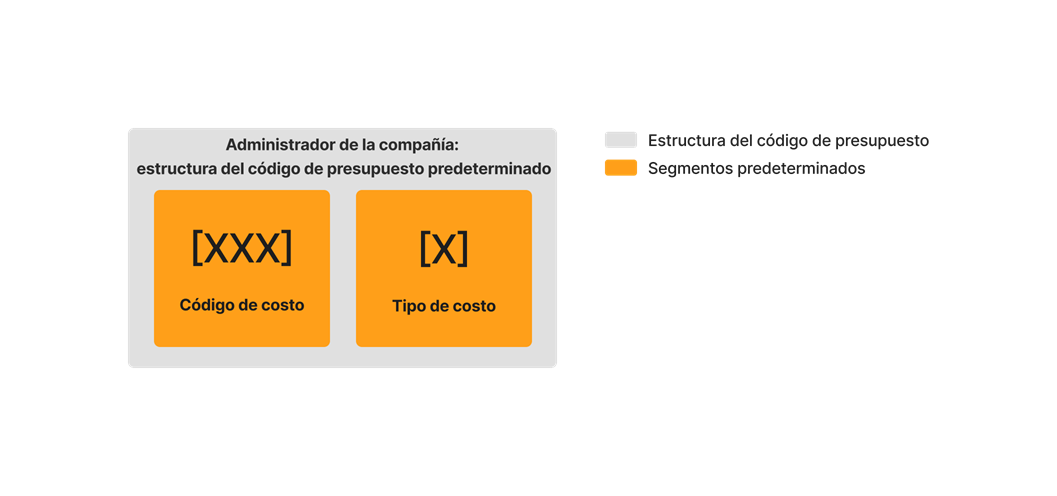
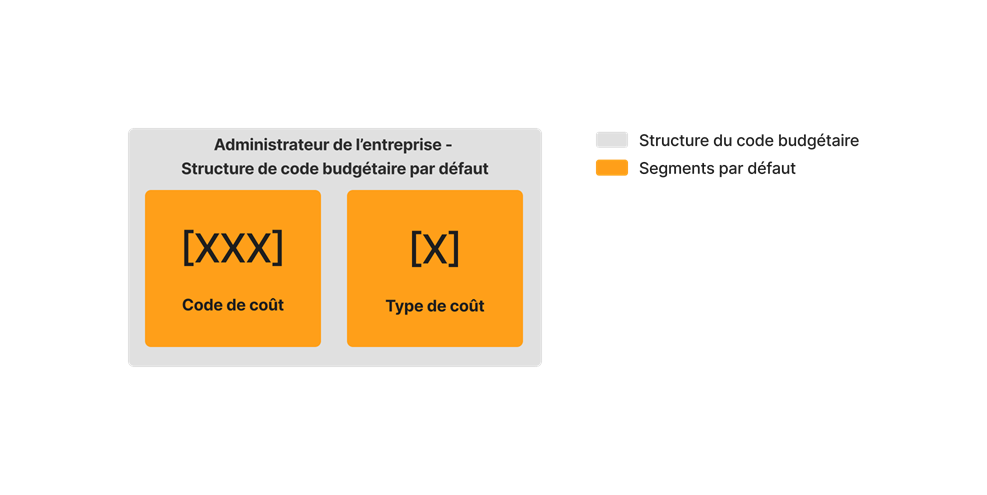
The example below shows you Procore's default budget code structure, which is available in the Company Admin tool. This budget code structure consists of Procore's two (2) default segments: Cost Code and Cost Type. These segments are required.
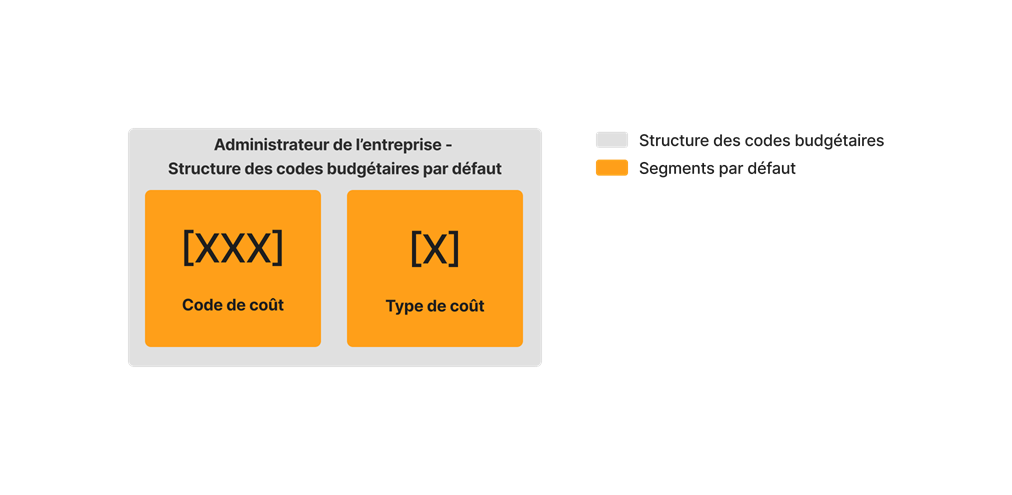
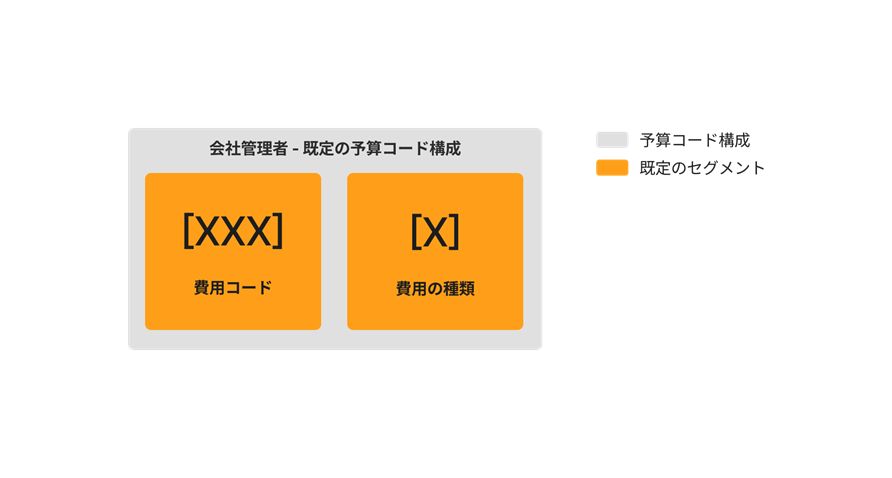
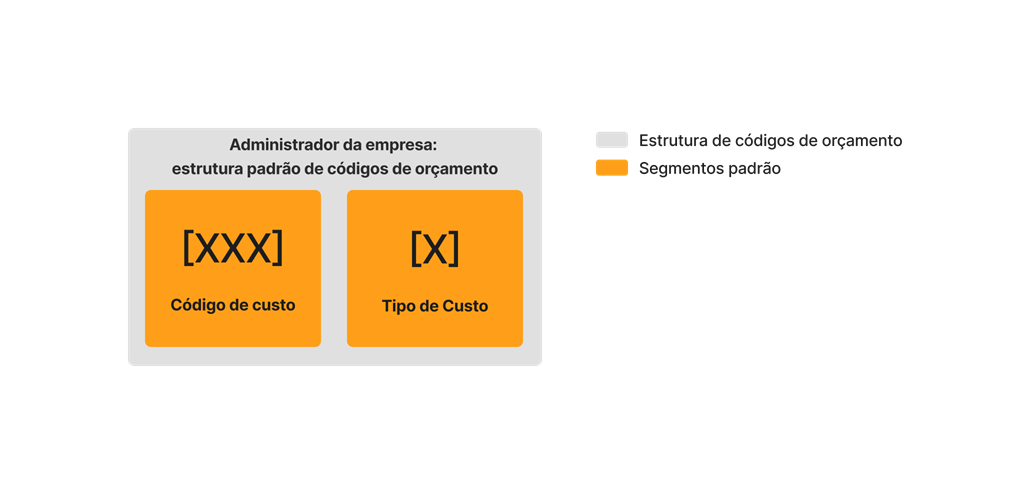
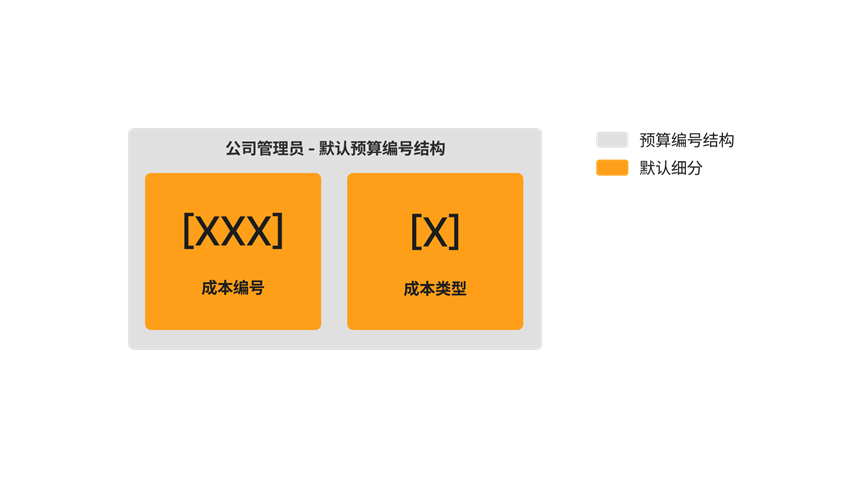
You also have the option to customize your budget code structure with up to ten (10) custom segments. The illustration below shows you how your budget code structure can be customized using a combination of both Procore's default segments and your own custom segments.
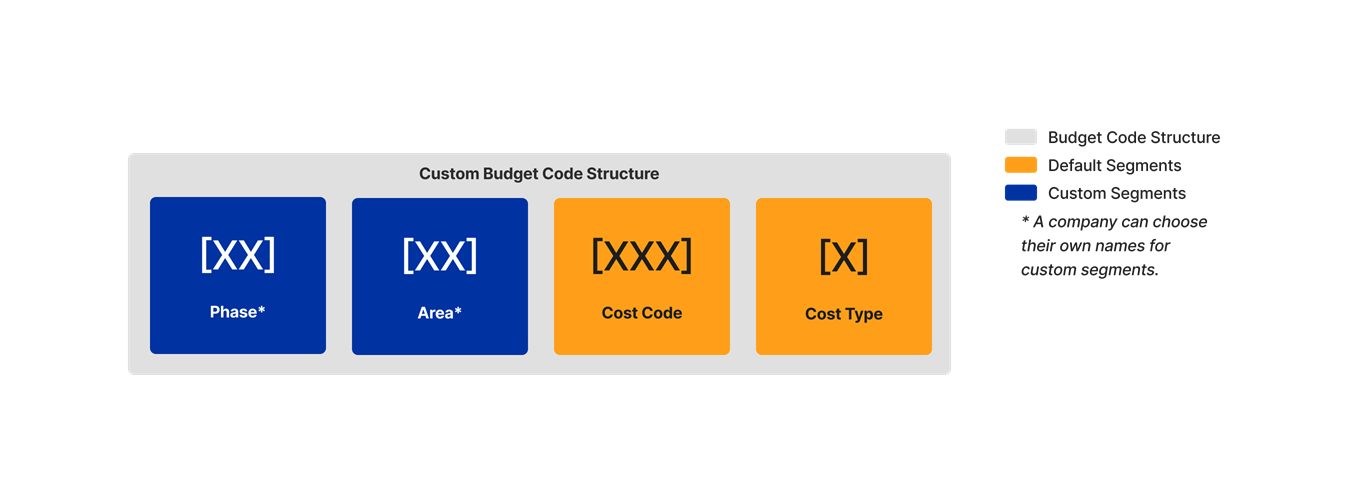
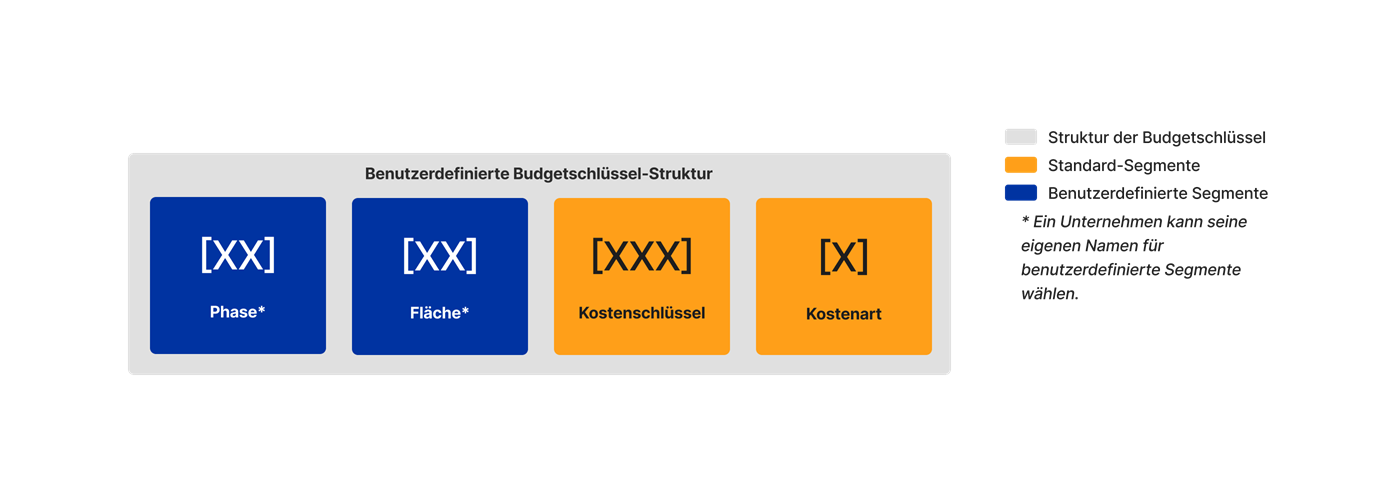
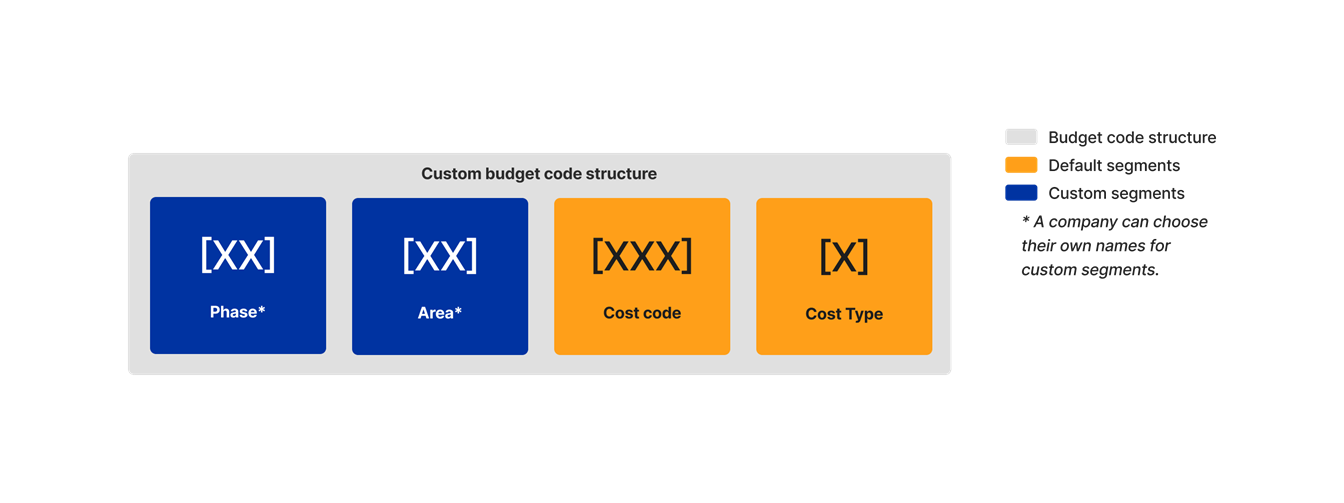
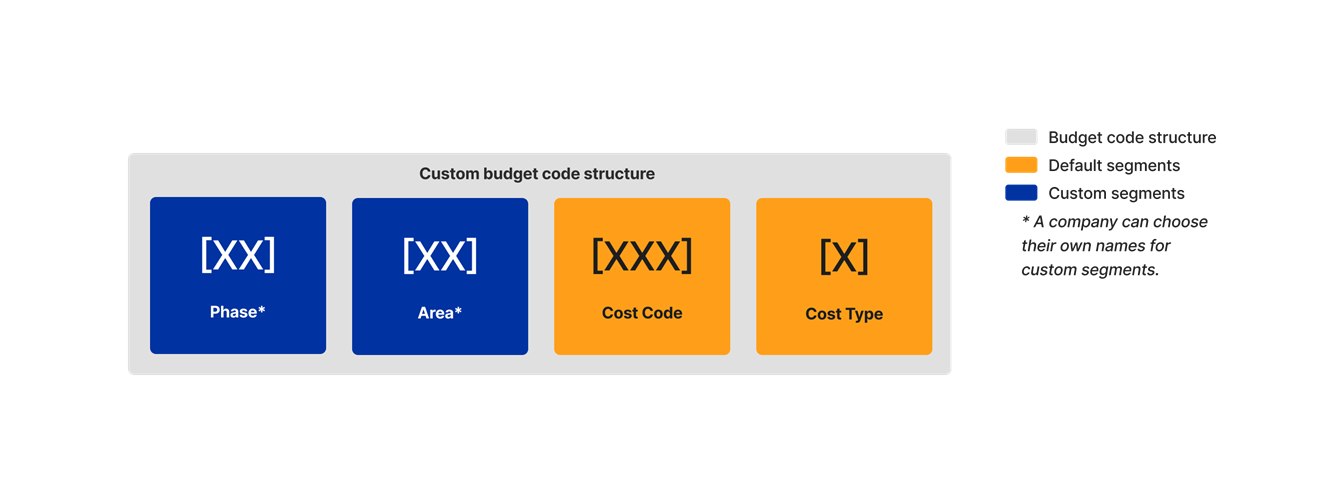
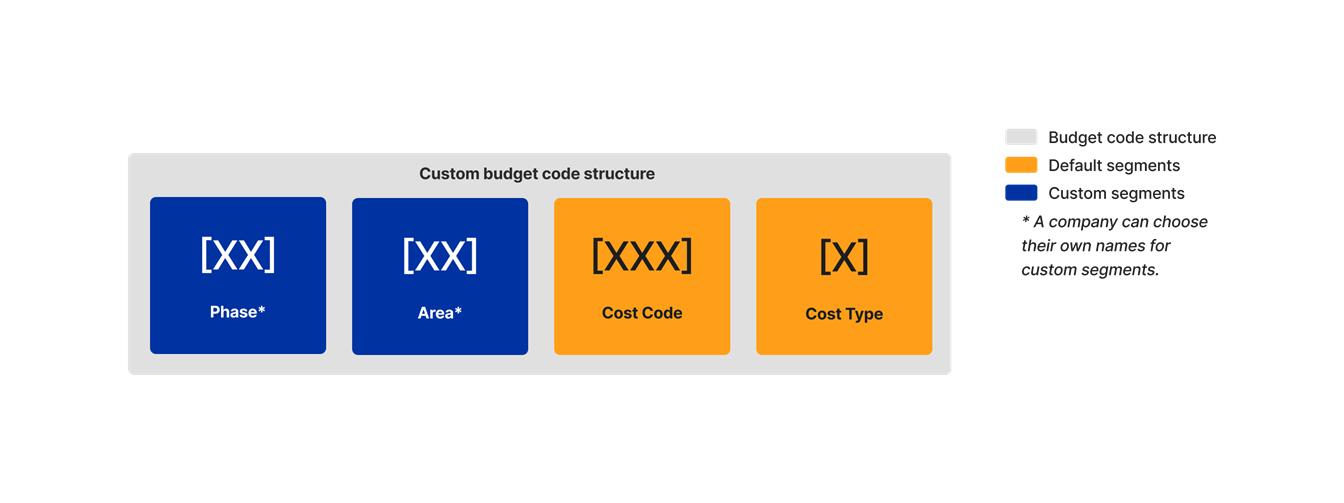
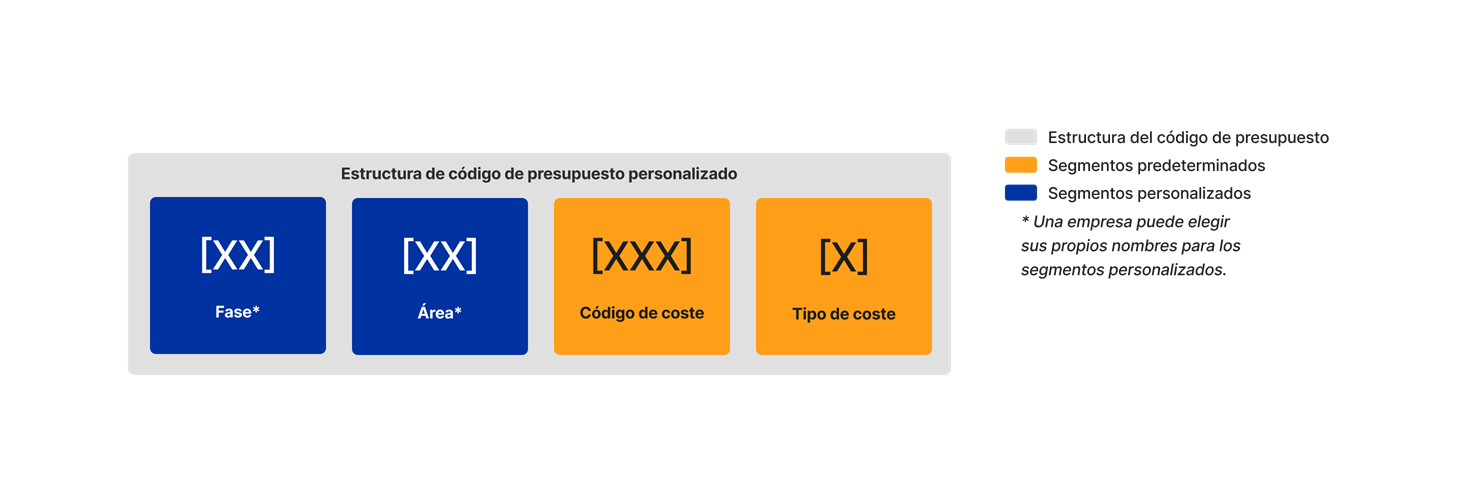
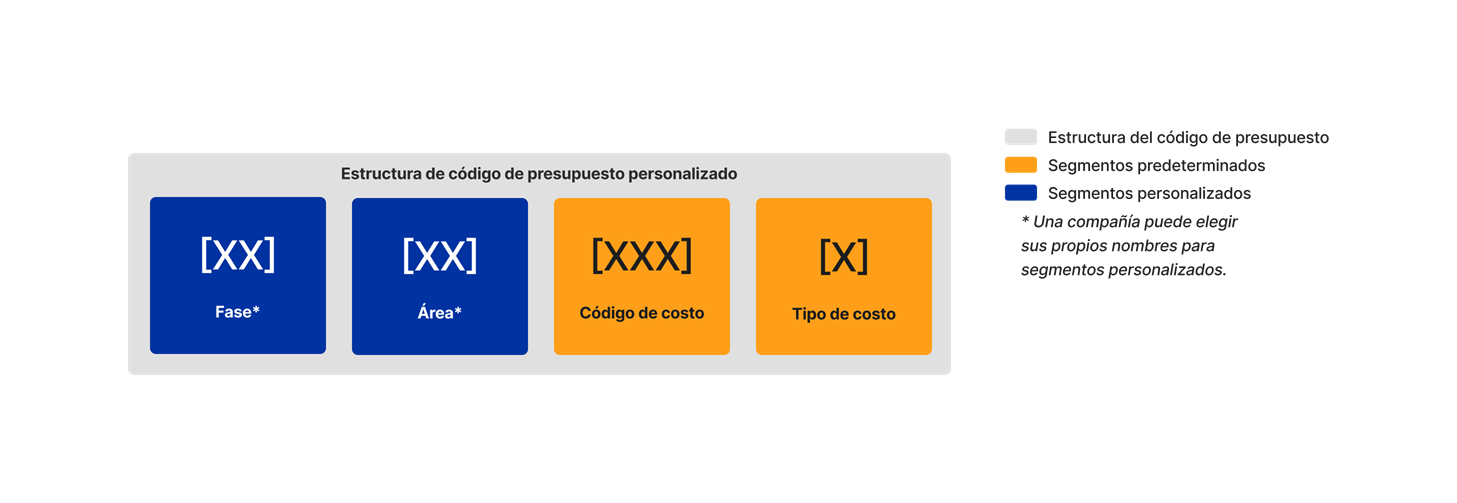
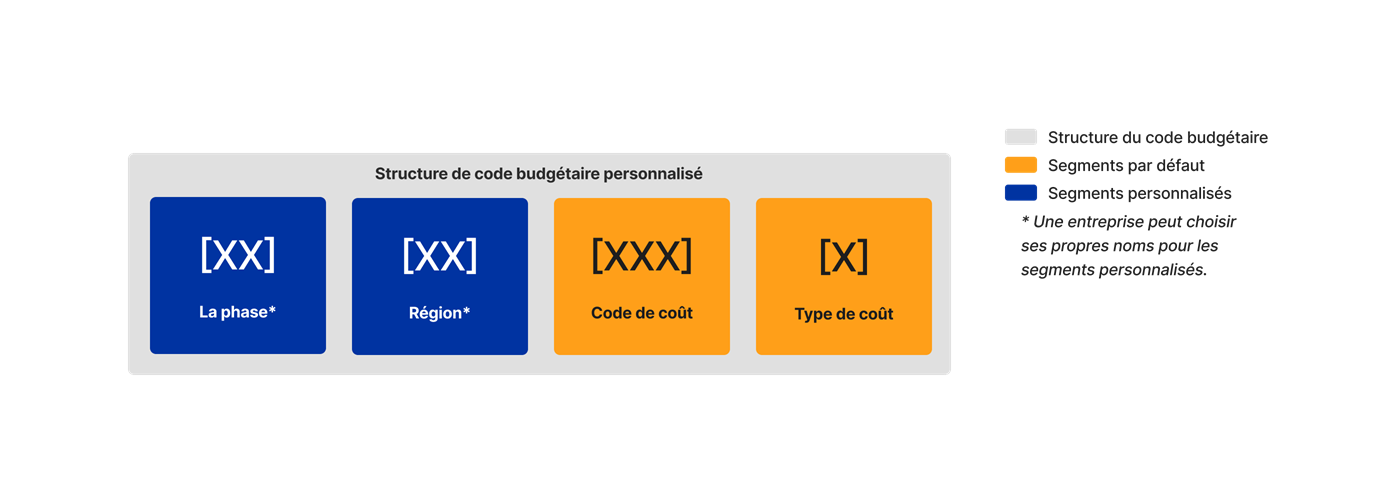
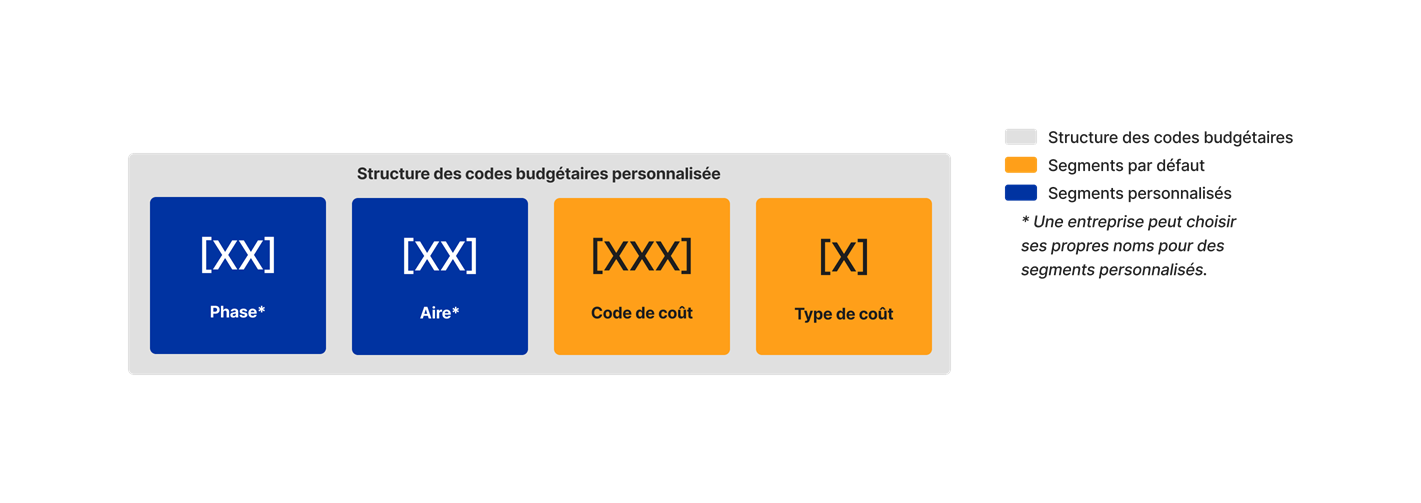
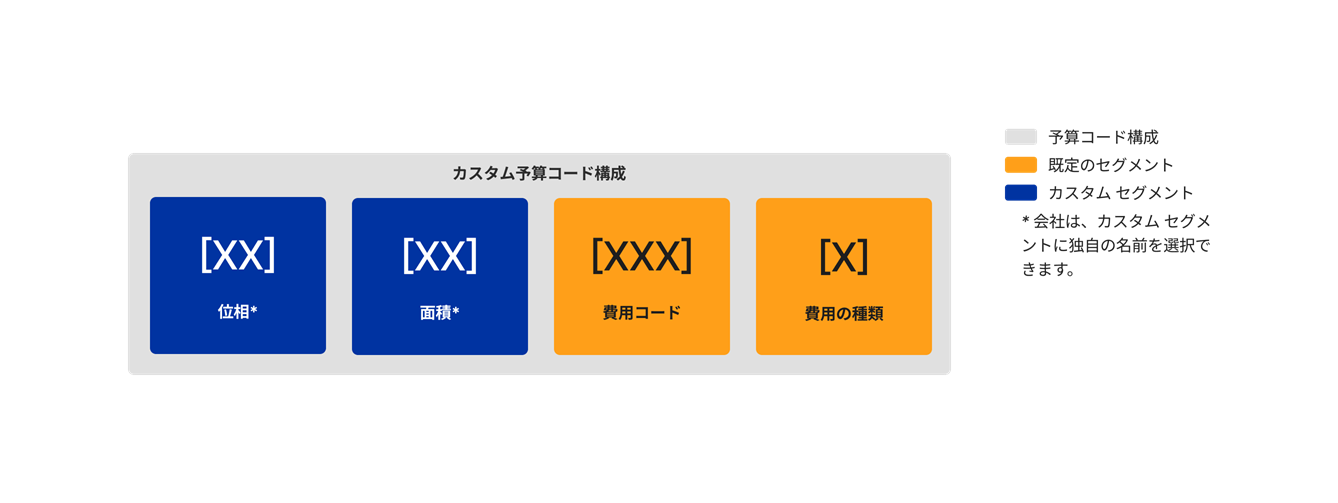
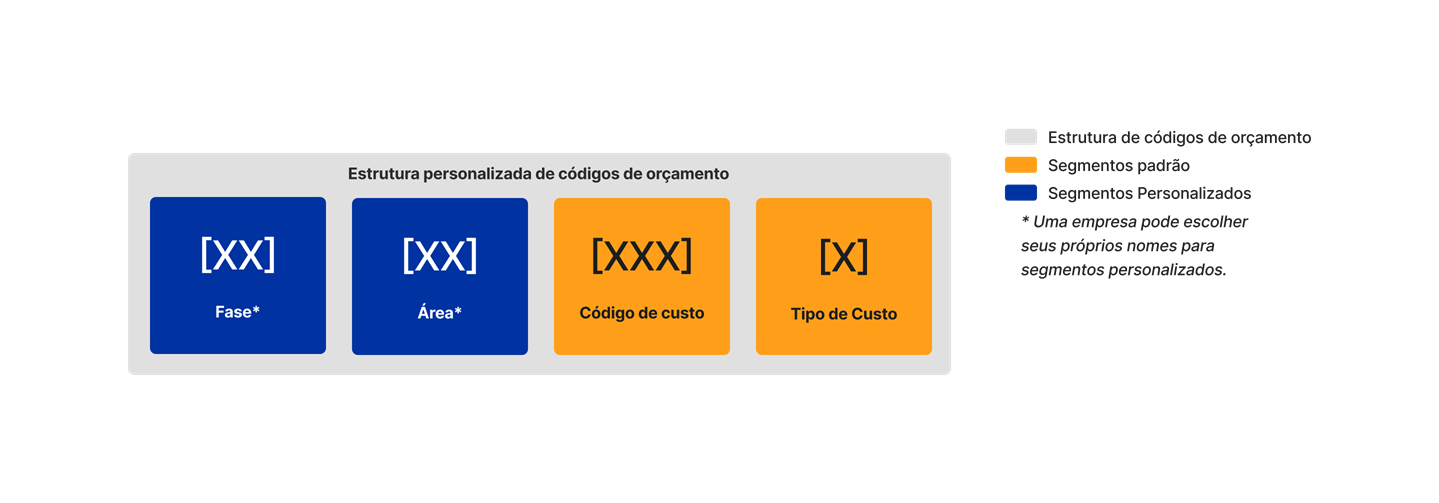
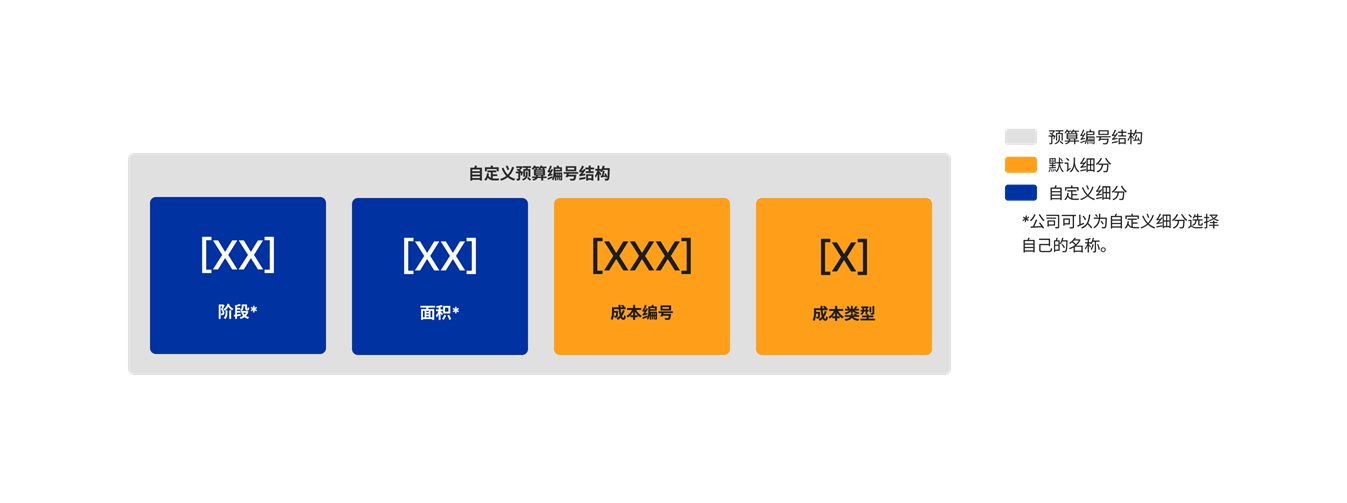
When getting started with Procore's WBS, segments must be added in the Company level Admin tool by your company's Procore Administrator. They are later used to define your company's budget code structure. Your company's budget code structure can be applied as-is to individual Procore projects or you can define a unique budget code structure at the project level, using a subset of what has been made available on projects via the company level.
When adding new segments to Procore, your company's Procore Administrator can configure each segment as flat or tiered. To learn more, see What are segments?
Tip
Not sure what custom segments to create? To learn how other Procore clients use Work Breakdown Structure, see What custom segments should we create for our company's Work Breakdown Structure?
Temas a considerar
- Permisos de usuario necesarios:
- 'Administrador' en la herramienta Administrador de los proyectos.
Nota: No se admiten permisos pormenorizados en la aplicación Procore Imports.
- 'Administrador' en la herramienta Administrador de los proyectos.
- Requisitos:
- Aplicación Procore Imports versión 1.4.0 o posterior. Consulte Instalar Procore Imports.
- Limitaciones:
- El proceso de importación no se puede utilizar para editar o eliminar ningún elemento de segmento existente.
- ¡Importante! Los códigos de coste integrados ERP no se admiten en Procore Imports. Consulte Configurar preferencias de códigos de coste para Integraciones ERP.
Requisitos
- Debe añadir segmentos a la estructura de código de presupuesto del proyecto antes de poder importar elementos de segmento a esos segmentos.
- A continuación, complete estos pasos:
Pasos
- En la aplicación Procore Imports, en la página "Empresas & Proyectos", seleccione la empresa a la que desea importar los elementos del segmento.
- Seleccione el proyecto en el que va a importar elementos de segmento.
- Haga clic en Continuar.
- En la sección "Segmentos PEP", haga clic en Añadir nuevos elementos de segmento.
- En "Seleccionar segmento de código de presupuesto", seleccione el segmento al que desea añadir elementos.
- Haga clic en Siguiente.
- Elija entre las siguientes opciones:
- Guardar y abrir plantilla en blanco. Seleccione esta opción para abrir, completar y guardar una plantilla de Excel para sus elementos de segmento. Consulte Preparar elementos de segmento para importarlos en la aplicación Procore Imports.
- Omitir este paso. Seleccione esta opción para cargar un archivo XLSX completo de sus códigos de coste en Procore.
- ElijaSeleccionar archivo de plantilla para cargar un archivo XLSX de elementos de segmento desde su dispositivo local.
- Haga clic en Procesar.
- Revise los elementos de su segmento.
- Elija entre las siguientes opciones:
- Guardar registros en el ordenador. Seleccione esta opción para guardar sus registros como un CSV y regresar para completar el proceso de importación en otro momento.
- Importar a Procore. Seleccione esta opción para continuar con el proceso de importación.
- Confirme su decisión de importar la lista de elementos del segmento escribiendo el nombre de su empresa en el campo de texto y haciendo clic en Continuar.
Nota
- Si hay algún error en la importación, se proporcionará una lista de los errores. A continuación, puede "Guardar errores para continuar" para descargar una copia de los errores y compararla con su archivo de importación original.
- Haga clic en Finalizar.