Crear una reunión
Contexto
Puede utilizar la herramienta Reuniones para crear agendas detalladas para las reuniones de su proyecto. El primer paso del proceso es crear la reunión. Este proceso le permite establecer la fecha, la hora, la ubicación y los asistentes. Este proceso se describe en los pasos siguientes. Una vez creada la reunión, puede pasar a crear categorías, que se utilizan para agrupar los elementos de la agenda en temas. A continuación, puede añadir los elementos de agenda individuales a sus categorías.
Temas a considerar
-
La reunión debe estar en modo Agenda. Esta es la configuración predeterminado cuando se crea una nueva reunión.
Para saber cómo convertir una reunión al modo Acta, consulte Convertir reunión al modo Acta.
Pasos
- Vaya a la herramienta Reuniones del proyecto.
- Haga clic en + Crear reunión.
- Seleccione + Nuevo o seleccione una plantilla de reunión de la lista.
- En Información de la reunión, complete los campos pertinentes para la nueva reunión.
Nota: Si no se selecciona una hora de inicio ni una hora de finalización, Procore las establecerá automáticamente a las 00:00.
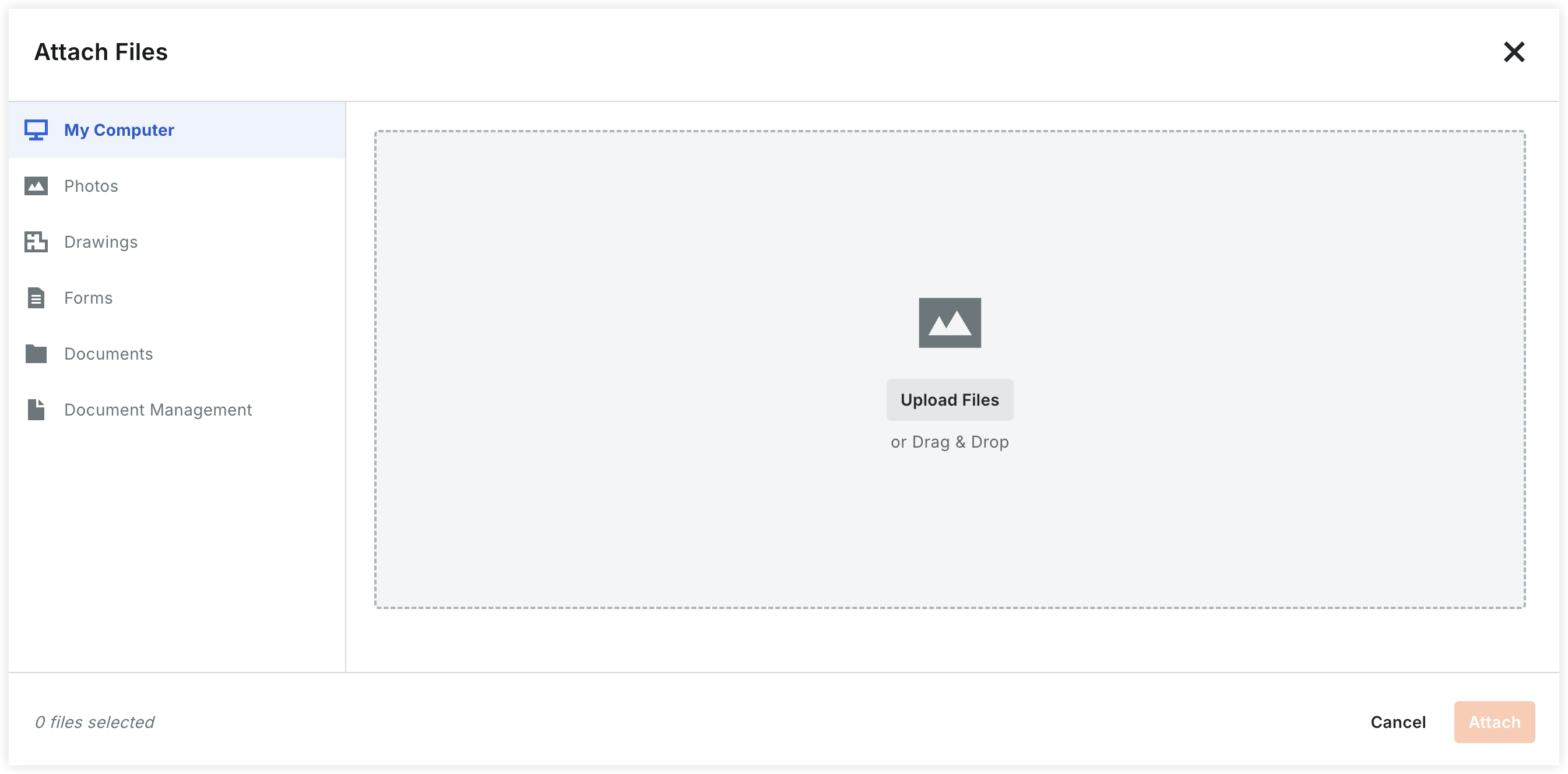
5. Añadir adjuntos: haga clic en Adjuntar archivos para abrir el modal de carga. Puede obtener archivos de las siguientes ubicaciones:
-
Mi PC: cargue archivos directamente o use el área de arrastrar y soltar.
-
Fotos: adjunte imágenes directamente desde la herramienta Fotos del proyecto.
-
Planos: vincule hojas específicas desde la herramienta Planos.
-
Formularios: adjunte formularios cumplimentados desde la herramienta Formularios.
-
Documentos: seleccione archivos ya almacenados en la herramienta Documentos del proyecto.
-
Control documental: adjunte archivos desde la herramienta Control documental.
6. Añadir asistentes:
-
Seleccione usuarios de la lista desplegable. (Los usuarios deben tener permisos de nivel "Solo lectura" o superior en la herramienta Reuniones para aparecer aquí).
Nota: Al seleccionar "Sí" en el campo Aprobación de acta solicitada, se desencadena un flujo de trabajo de respuesta para el asistente.
7. Haga clic en Crear y pasar a la agenda.
Nota
-
Aparece un banner para confirmar que se ha creado la reunión y el título de la página cambia a "Agenda de la reunión para"
-
Si desea añadir categorías adicionales a su reunión, consulte Crear una categoría de reunión.
-
Si desea añadir elementos de reunión (también conocidos como elementos de agenda) a la reunión, consulte Añadir elemento de reunión.
-
Procore añade automáticamente una (1) categoría, llamada "Elementos sin categorizar", a la reunión. Puede cambiar el nombre de esta categoría escribiendo sobre el nombre.